Showing posts with label Hadoop. Show all posts

Thursday, 2 August 2012

Connect Excel to Hadoop on Azure via HiveODBC

One key feature of Microsoft’s Big Data Solution is solid integration of Apache Hadoop with the Microsoft Business Intelligence (BI) components. A good example of this is the ability for Excel to connect to the Hive data warehouse framework in the Hadoop cluster. This section walks you through using Excel via the Hive ODBC driver.

Install the Hive ODBC Driver
Prerequisites:


  • Ensure that Excel 2010 64-bit is already installed before installing the HiveODBC Driver.
  • Download the 64-bit Hive ODBC driver MSI file from the Portal by clicking the Download tile after logging into HadoopOnAzure.com .
  • Note, the HiveODBC driver includes both the HiveODBC Driver and the Excel Hive-AddIn.


  1. Double click HiveODBCSetupx64.msi to start the installation.
  2. Read the license agreement.
  3. If you agree to the license agreement, click I agree and Install.

 4. Once the installation has completed, click Finish to exit the Setup Wizard.

Install the Microsoft Excel Hive Add-In

Prerequisites:

  • Microsoft Excel 2010 64-bit
  • 64bit Hive ODBC driver installed

  1. Start Microsoft Excel 2010 64-bit.
  2. You will be asked to install the HiveExcel add-in. Click Install.
  3. Once the add-in has been installed, click the Data tab in Microsoft Excel 2010. You should see the Hive Panel as shown in the screenshot below.


Create a Hive ODBC Data Source to use with Excel

  1. Click Start->Control Panel to launch the Control Panel for Microsoft Windows.
  2. In the Control Panel, Click System and Security->Administrative Tools->Data Sources (ODBC). This will launch the ODBC Data Source Administrator dialog.
  1. In the ODBC Data Source Administrator dialog, click the System DSN tab.
  2. Click Add to add a new data source.
  3. Click the HIVE driver in the ODBC driver list.
4. Then click Finish. This will launch the ODBC Hive Setup dialog shown in the screenshot below.

  1. Enter a data source a name in the Data Source Name box. For Example, “MyHiveData”.
  2. In the Host box , enter the host name of the cluster you created on the portal. For example, “myhadoopcluster.cloudapp.net”.
  3. Enter the username you used to authenticate on the portal.
  4. Click OK to save the new Hive data source.
  5. Click OK to close the ODBC Data Source Administrator dialog.


Using the Excel Hive Add-In


  1. Go to HadoopOnAzure.com and click Sign In to sign into your Hadoop cluster.
  2. Click the Open Ports tile to access port configurations for your cluster.
3. On the Configure Ports page, click the toggle switch for the ODBC Server port to turn it on.
  1. Open Microsoft Excel 2010 64-bit.
  2. In Microsoft Excel 2010 64-bit, click the Data tab.
  3. Click the Hive Panel to open the Hive panel in Excel.
  4. In the drop-down list labeled Select or Enter Hive Connection, select the data source name you previously created.
  5. You will be asked to enter the password to authenticate with the cluster on the portal. Enter the password for the user name.
  6. In the drop-down list labeled Select the Hive Object to Query, select hivesampletable [Table].
  7. Select the checkbox for each of the columns in the table. The Hive Query panel should look similar to the following.
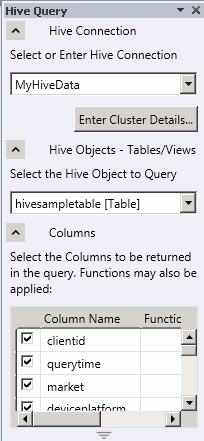
11. Click Execute Query.


Microsoft SQL Server 2012 Takes on Big Data with Hadoop

At PASS Summit 2011 in Seattle, one of the biggest surprise announcements was Microsoft's support for Apache Hadoop as a part of its SQL Server 2012 announcements.
To understand why Hadoop is important and how it relates to SQL Server, we need to get an idea of what Hadoop actually is and what it isn’t. First, Hadoop isn’t a relational database system, so it’s not a replacement or substitute for SQL Server. Hadoop is an open-source project that’s managed by the Apache Software Foundation. It was designed to solve a somewhat different problem—the problem of handling large amounts of unstructured data. SQL Server and other relational databases primarily store structured data. Data can be stored by using the XML and FileStream data types, but there can be limitations to the size, as well as the amount of processing power that can be applied to access the data. The basic technology behind Hadoop was originally developed by Google so that it could index all types of textual information. Google’s ideas were then incorporated into an open-source project named Nutch and later Yahoo! worked to transform Hadoop into an enterprise application. Hadoop is used by several notable companies, perhaps the most recognizable company is Facebook. In 2010, Facebook had the largest Hadoop cluster in the world, with more than 20PB of storage.
Hadoop is written in Java and runs on a collection of commodity shared-nothing servers. You can add or remove servers from a Hadoop cluster at anytime without disrupting the service. The more servers you use, the more computing power you get. A Hadoop implementation consists of two key components: the Hadoop Distributed File System (HDFS), which provides data storage across multiple servers, and high-performance parallel data processing, which uses a technique called MapReduce. MapReduce essentially splits up data discovery and indexing tasks by sending different parts to all of the servers in your cluster. Each server works on its own piece of the data. The results are then delivered back to the user as a complete set. In essence, MapReduce maps the operation out to all of the servers in the cluster and reduces the results into a single result set.
To implement Hadoop you can buy a collection of commodity servers and run the Hadoop software on each server to create a high-performance Hadoop cluster. For better scalability, you can add more servers. When you load all your data into Hadoop, the software breaks the data into pieces and distributes it across all the available servers. There's no central location in which you access your data. The Hadoop cluster keeps track of where the data resides and automatically stores multiple copies of the data. If a server fails or is removed from the cluster, Hadoop automatically replicates the data from a known copy.
Being an open-source product you might wonder what Hadoop has to do with Windows. At PASS Summit 2011, Microsoft announced that the company had created a Windows version of Hadoop that's able to run on Windows Server for on-premises implementations or on Windows Azure for cloud implementations. In addition, Microsoft is working with HortonWorks to develop bi-directional connectors for Hadoop and SQL Server. The SQL Server connector for Apache Hadoop lets customers move large volumes of data between Hadoop and SQL Server 2008 R2 or SQL Server 2012. There will also be a SQL Server Parallel Data Warehouse (PDW) connector for Hadoop that transfers data between Hadoop and SQL Server PDW. These new connectors will enable customers to work with both structured SQL Server data and unstructured data from Hadoop.
Hadoop isn’t a replacement for SQL Server’s relational database. Instead, it provides new capabilities that weren’t previously unavailable. I think Microsoft’s view is that Hadoop will be used in conjunction with SQL Server’s relational and analytic capabilities to enable enterprises to deploy Hadoop implementations alongside their exiting IT systems. This will extend the types of data that you can use in your applications similarly to how SQL Server Analysis Services (SSAS) does with the SQL Server relational database engine. In addition, it'll help SQL Server better compete with both Oracle and IBM’s DB2, which have also embraced Hadoop. Big data is a rapidly growing a trend and the ability to incorporate big data with SQL Server is a big deal. Click here for more information about Microsoft’s implementation of Hadoop and how it relates to SQL Server.